Stock and Inventory
Inventory is where you check what your store holds and correct it — a physical count, an adjustment, or a write-off. It is available to users with the Manage Inventory permission, and everything on it is scoped to your store.
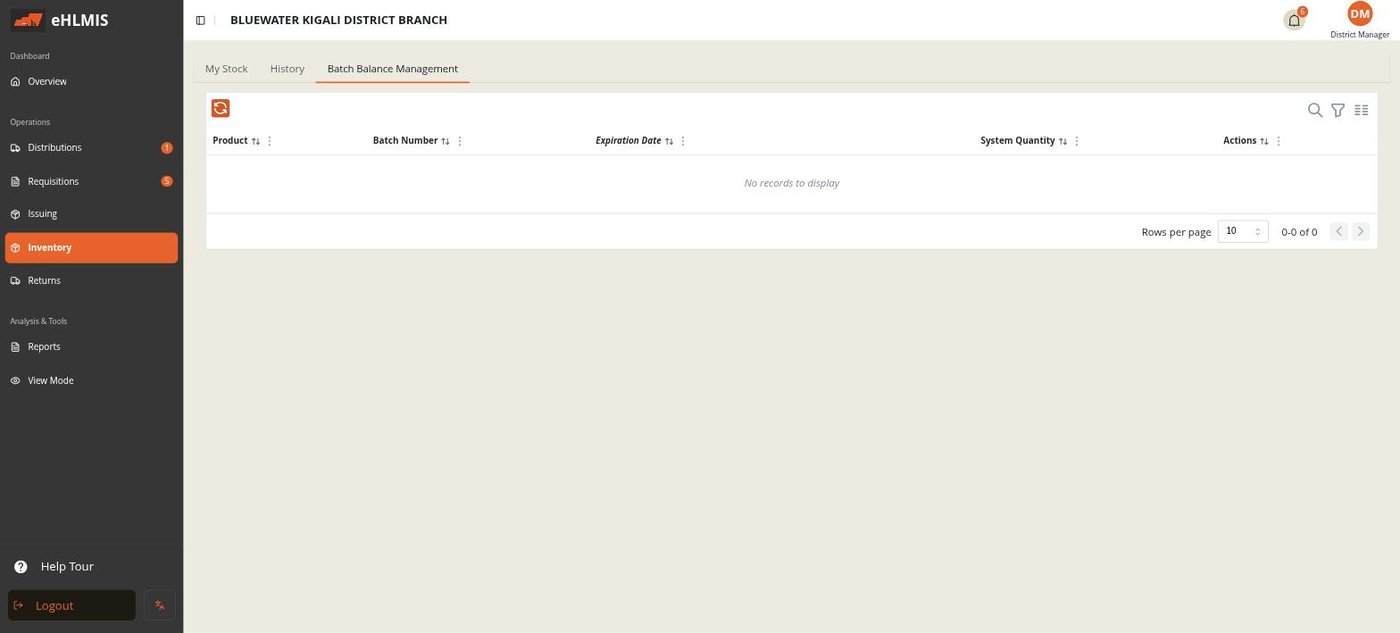
The screen has three tabs: My Stock, History, and Batch Balance Management.
Reading your stock
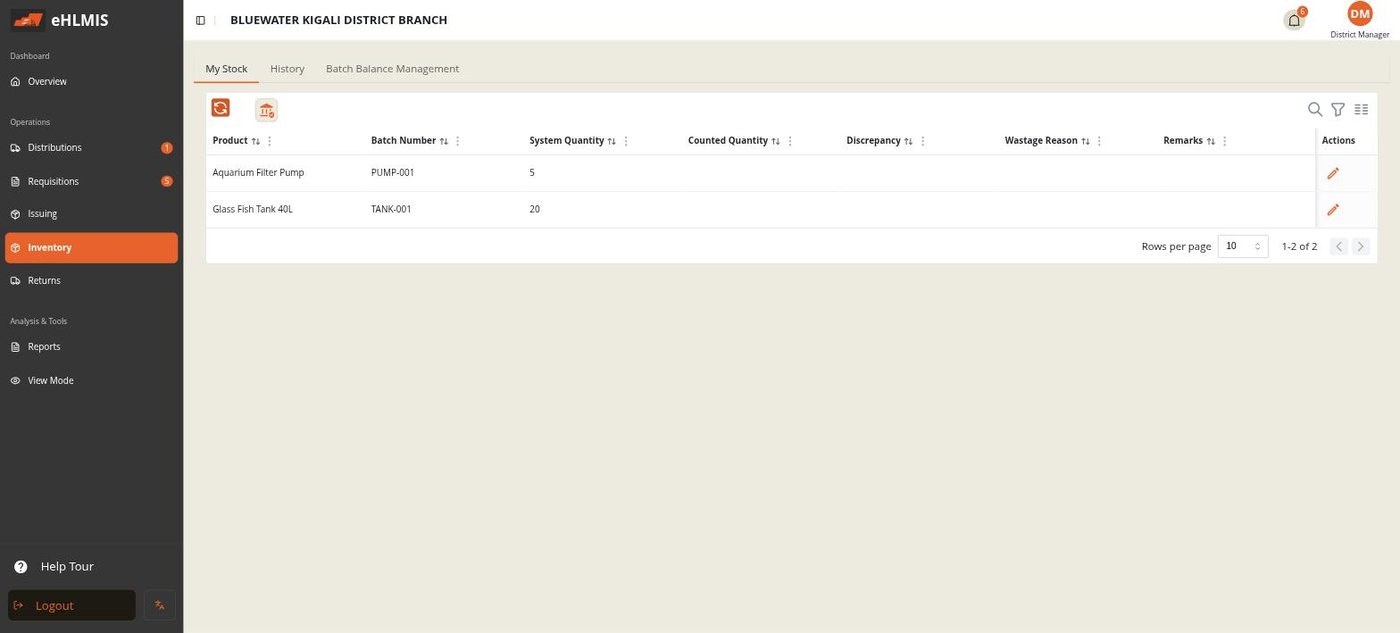
The My Stock table has one row per product-and-batch you hold:
| Column | Meaning |
|---|---|
| Product / Batch Number | What the line is |
| System Quantity | What HLMIS thinks you have |
| Counted Quantity | What you entered at the last count (blank until you count) |
| Discrepancy | Counted minus System |
| Wastage Reason / Remarks | Set when the line was adjusted |
The Overview dashboard shows the same balances grouped by product category, and the Reports screen has the fuller stock reports (in-stock, expired, stock summary) — see Reports.
Counting and adjusting
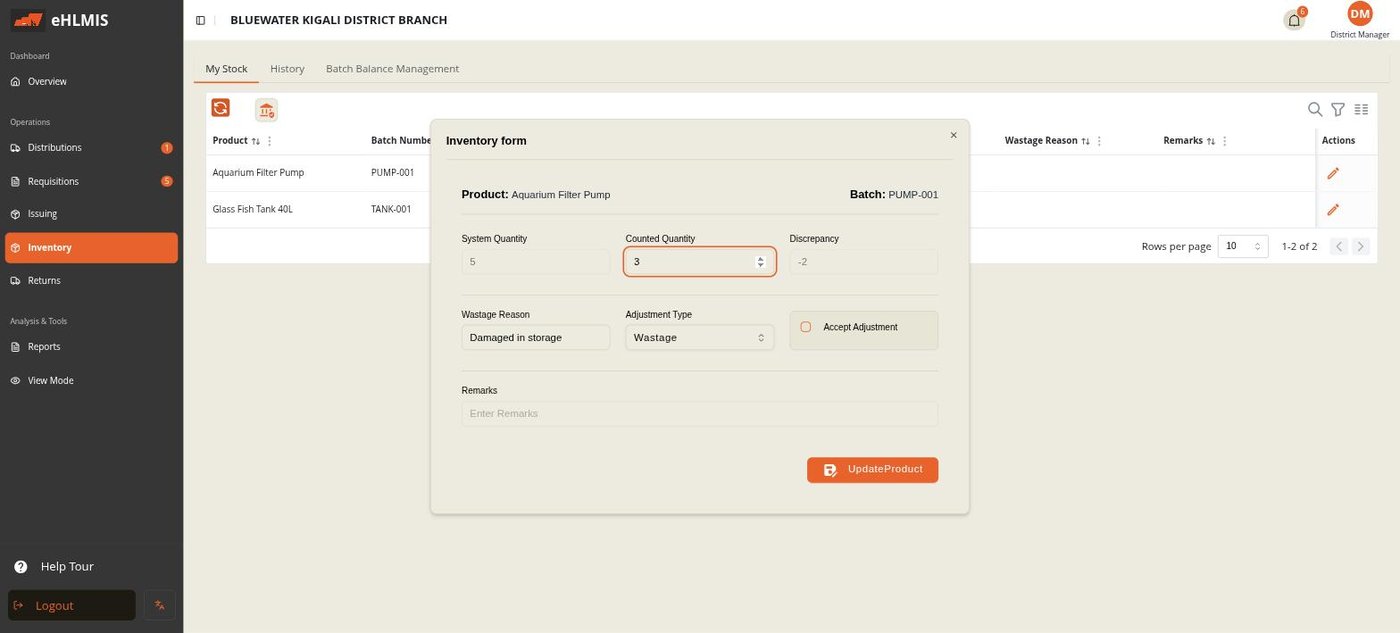
Each row has an action that opens the Inventory form. It shows the Product, Batch, and the System Quantity (read-only), and you choose what kind of correction this is:
Physical count
- Open the form on the line, set the Adjustment Type to Physical Count.
- Enter the Counted Quantity. The Discrepancy fills in automatically.
- Tick Accept Adjustment and add Remarks if useful.
- Save.
Write-off / wastage
- Open the form, set the Adjustment Type to Wastage.
- Enter the Counted Quantity (what is actually left after the loss).
- Fill in the Wastage Reason (a free-text field here — e.g. damaged in storage, expired).
- Tick Accept Adjustment, add Remarks, and save.
Posting
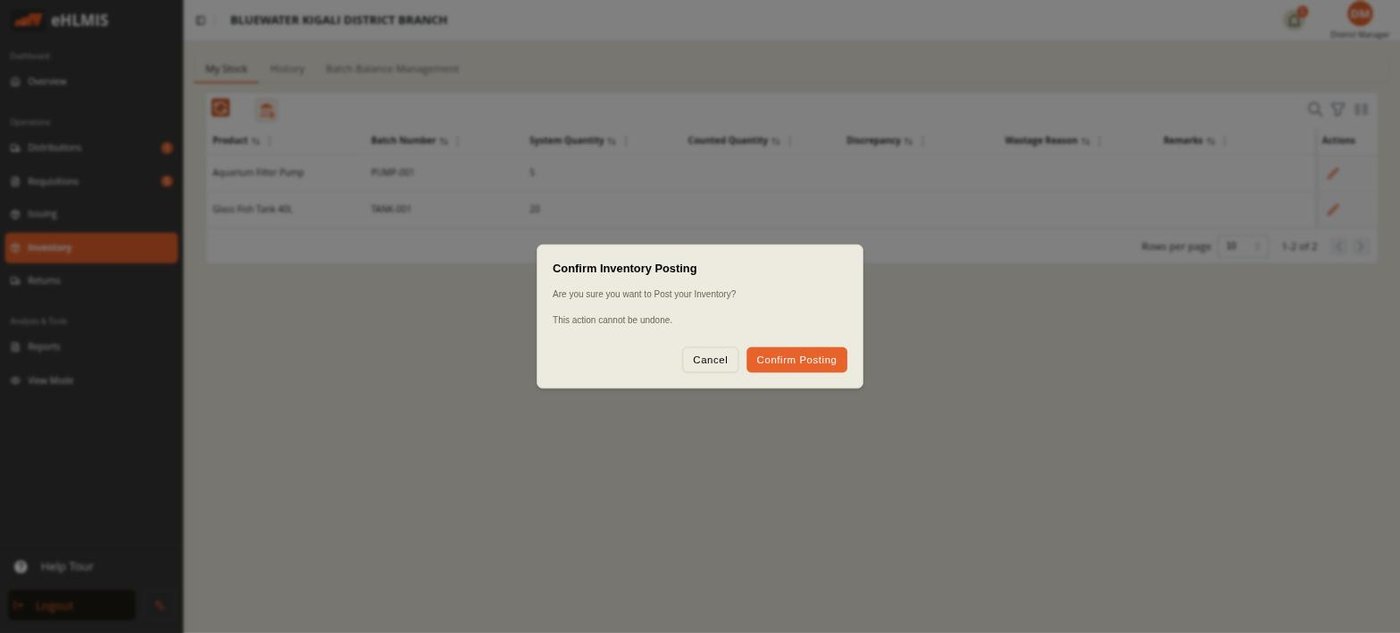
Counts and adjustments you enter are staged, not applied. When you are finished, use the Post Inventory control (the second icon above the My Stock table — hover for its label) and confirm. This applies every staged line to your stock balances at once and cannot be undone. Each posted change is recorded and appears in the History tab and in the wastage / stock reports.
History
The History tab lists every count and adjustment your store has posted, with the product, batch, quantities, reason, and date — the audit trail behind your current balances.
Batch Balance Management
The Batch Balance Management tab lists your batches with their remaining System Quantity. Its one action, Stock Exhausted, marks a batch as closed once its balance reaches zero, so it drops out of the pickers for new transactions. Un-tick it to reopen a batch.