Products and Configuration
Maintenance is where an administrator sets up the things the rest of the system draws on — what you stock, who supplies it, and any extra fields your organisation needs to record. It is available to administrators at the main store and is organised into tabs:
Products · Product Types · Suppliers · Locations · Attributes · Custom Reports · Settings
(Locations, Custom Reports, and Settings have their own pages.)
Product Types
A product type is a category. Every product belongs to one.
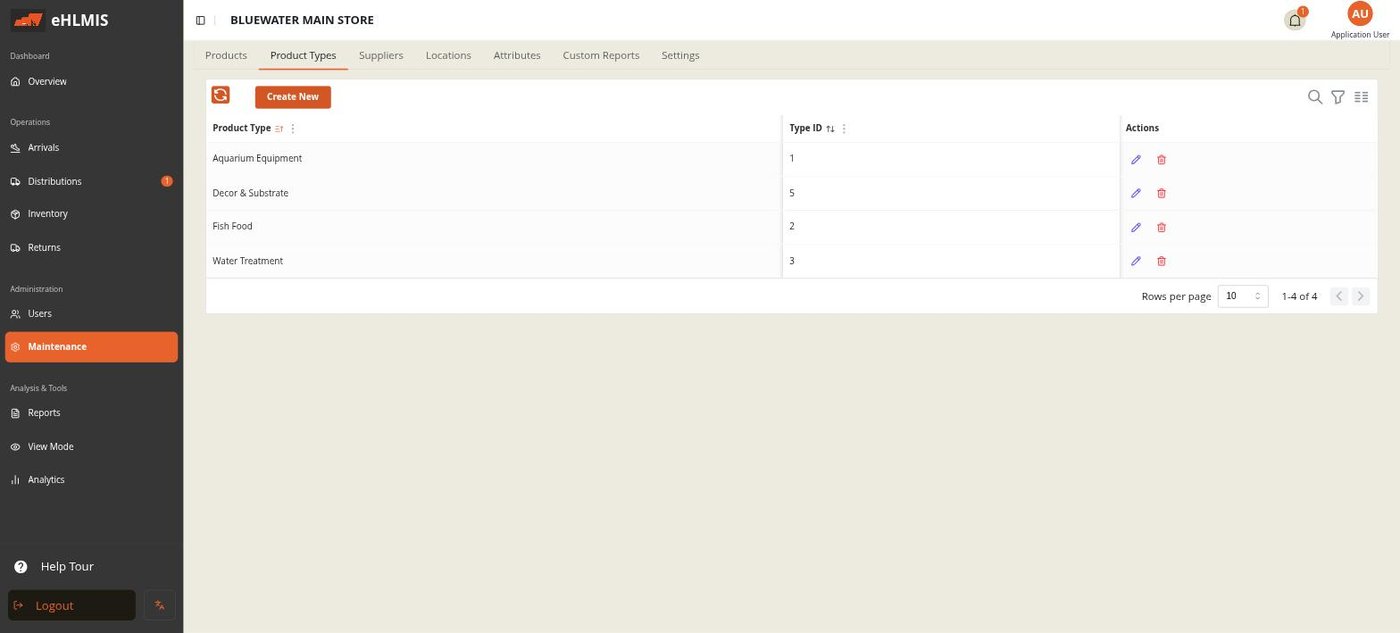
Use Create New to add one (just a Name), edit a name in place, or delete a type you are not using (you are asked to confirm).
Suppliers
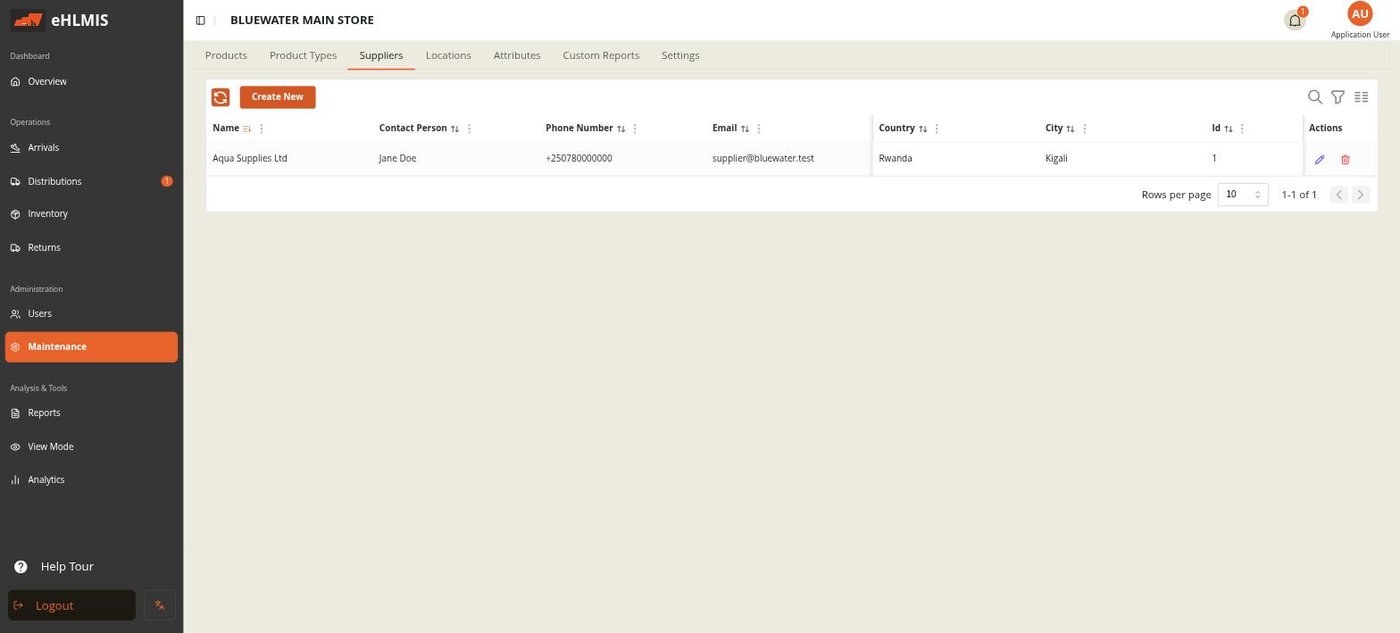
The organisations you receive stock from. Create New captures Name, Contact Person, Phone Number, Email, Country, and City. Rows can be edited or deleted.
Products
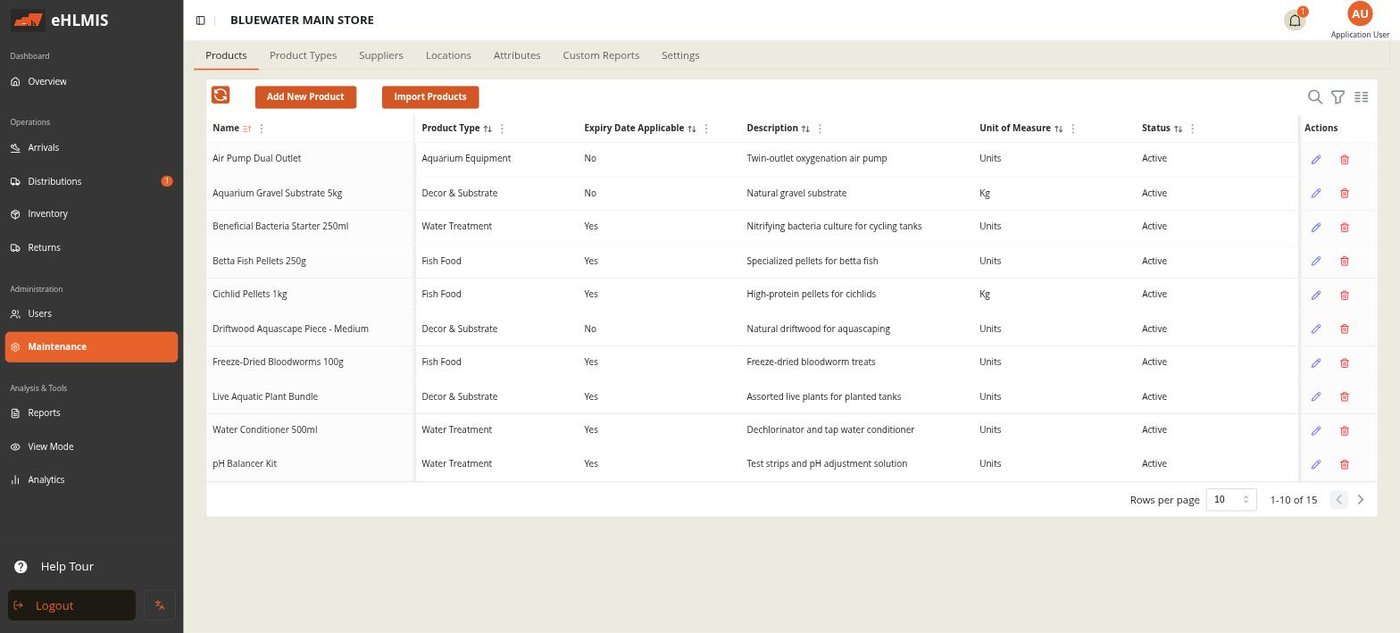
The Products tab lists every product with its Product Type, Name, whether expiry applies, Description, Unit of Measure, Status (Active / Inactive), and a column for each custom product field you have defined.
Adding or editing a product
Add New Product (or the ✎ action on a row) opens the product form:
| Field | Notes |
|---|---|
| Name | Required |
| Unit of Measure | Free text — e.g. Box, Sachet, Piece. Optional |
| Expiration applicable | Toggle. When on, batches of this product must carry an expiry date and the expiry reports track them. Equipment-type products usually leave this off |
| Product Type | Pick from the list (searchable) |
| Description | Required |
| (custom fields) | Any active fields defined for products appear here — see Custom fields |
Click Save Product / Update Product. To take a product out of use, edit it and set it inactive — it stays in historical records but is hidden from new transactions.
Bulk-importing products
Use Import Products to create many at once from a spreadsheet.
- Download Template — an
.xlsxwith the required columns (name,description,productType,unitOfMeasure,hasExpirationDate) plus a column for each active product custom field. - Fill it in and save as
.csvor.xlsx. - Choose the file and click Preview. HLMIS validates every row and reports "N of M rows are valid" with a message against each bad row (matching the spreadsheet's own row numbers).
- Fix the flagged rows in your file and preview again.
- When every row is valid, click Confirm Import. It reports how many products were created.
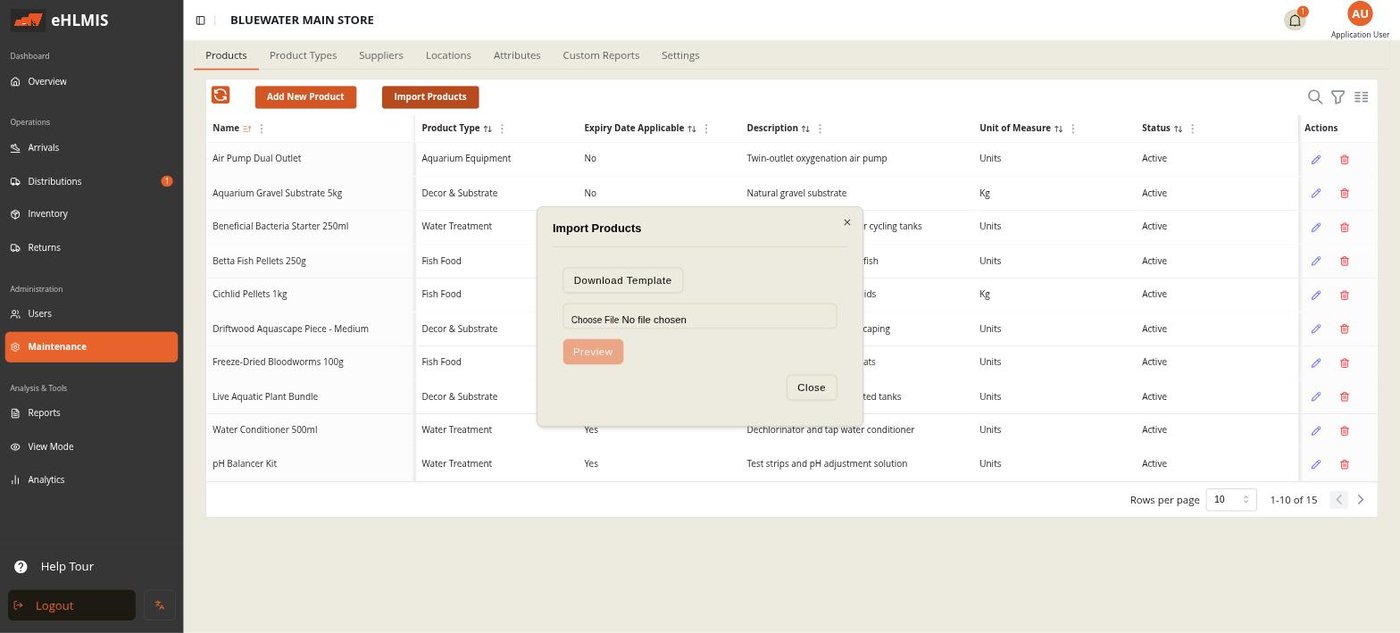
Import Products is hidden when HLMIS is synced with DHIS2 — products come from DHIS2 in that mode.
Custom fields (Attributes)
The Attributes tab lets you add extra fields to almost anything HLMIS records — products, batches, stock movements, orders, issuing, dispensing — without a code change. The shortfall reason and return reason dropdowns you see elsewhere in the app are themselves custom fields defined here.
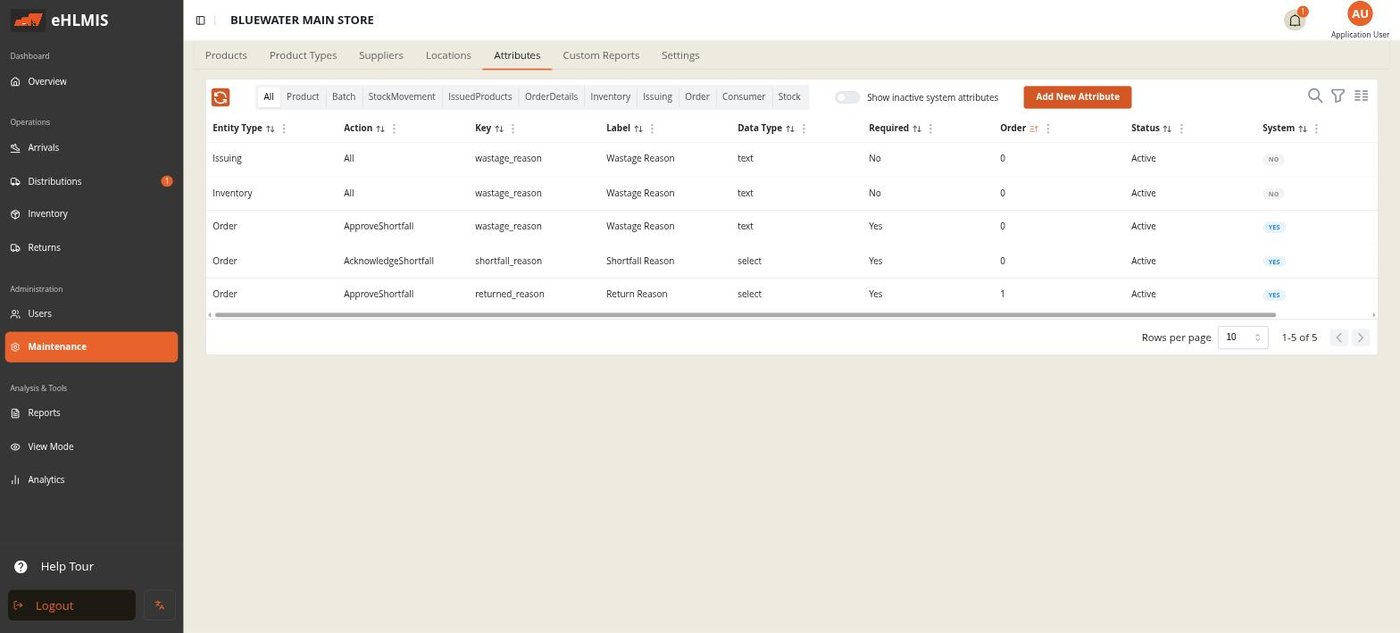
Defining a field
Add New Attribute opens the form:
| Field | Meaning |
|---|---|
| Entity Type | What the field attaches to: Product, Batch, StockMovement, IssuedProducts, OrderDetails, Inventory, Issuing, Order, Consumer, Stock |
| Action | All actions (the field always appears for that entity), or a specific action to show it only in one place |
| Key | The internal name — lowercase letters, numbers and underscores, e.g. funder. Must be unique for that entity type |
| Label | What users see on the form and in tables |
| Data Type | text, number, boolean, date, or select |
| Options | Only for select — the dropdown choices, comma- or newline-separated |
| Required | Whether the field must be filled in |
| Display Order | Lower numbers appear first on the form |
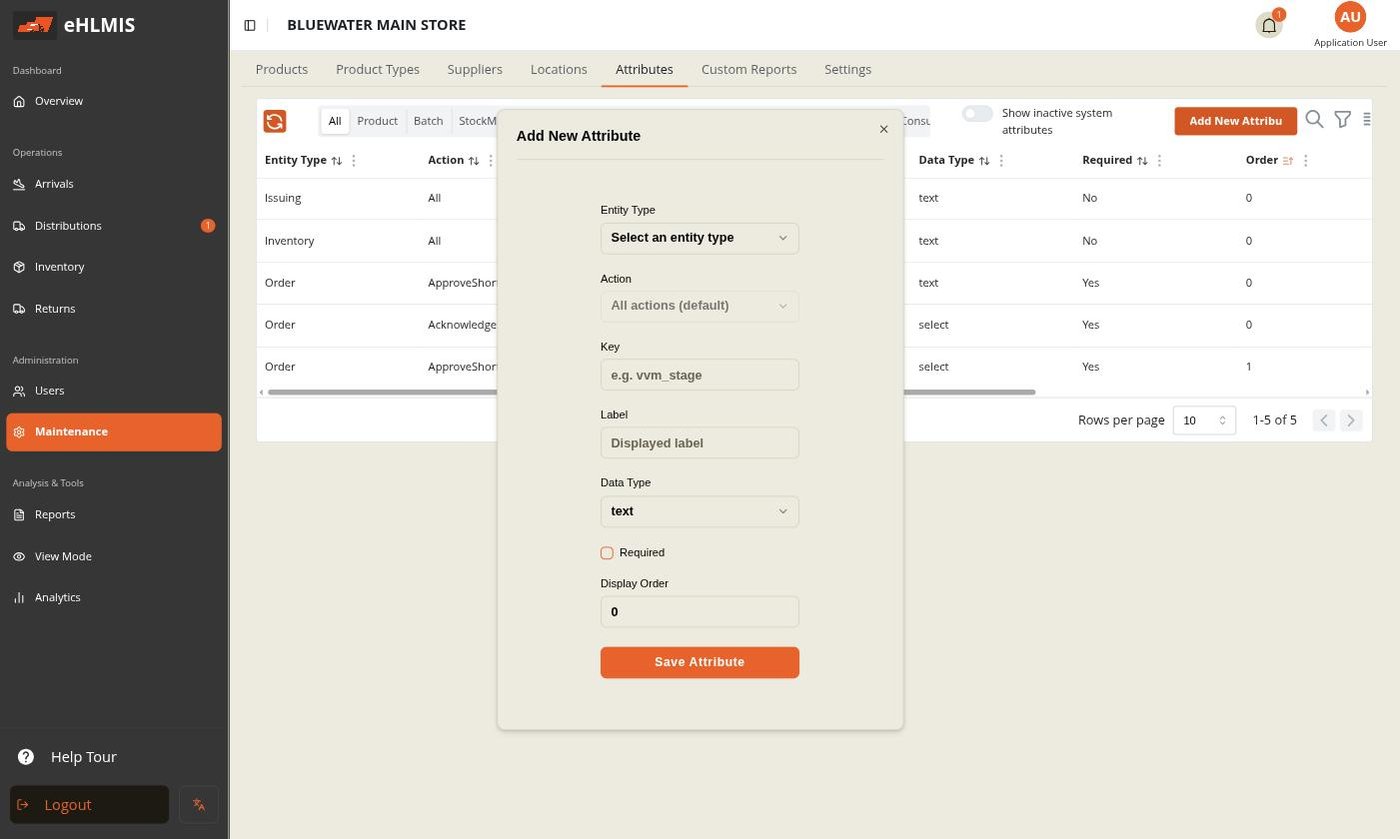
When Data Type is select, an extra Options box appears for the dropdown choices.
Deactivating vs. deleting a field
- A field is deactivated, not deleted (🗑 → confirm). It disappears from forms and new records, but every value already recorded under it is kept and still shows in historical views and exports. Deactivated fields can be reactivated (↺).
- The lock icon toggles system protection. A protected (system) field cannot be edited or deactivated until protection is removed — use it for fields your operation depends on so they are not changed by accident.
Out of the box the active custom fields are the wastage / shortfall / return reasons on stock and order actions. A set of vaccine- and DHIS2-oriented fields (VVM Stage, HMIS Code, Funder, GTIN, …) ship inactive — an administrator activates the ones their programme needs from this tab, the same as any other field.