Orders and Requests
Stock moves between stores as an order: a store asks its parent for stock, the parent approves and sends it, and the requesting store confirms what arrived. The two ends of that conversation are two different screens:
- Requisitions — the requesting side (any store that is not the main store). Menu: Operations → Requisitions.
- Distributions — the fulfilling side (any store that has other stores reporting to it). Menu: Operations → Distributions.
A store in the middle of the hierarchy uses both.
An order's life
| Status | What it means |
|---|---|
| Draft | The requesting store is still building the request |
| Submitted | Sent to the parent store, not yet acted on |
| Pending | The parent has set the approved quantities and validated the order |
| Approved | The parent has released the stock — it has left the parent and arrived at the requesting store's balance; the requesting store has not yet confirmed receipt |
| Complete | The requesting store has acknowledged what arrived and it matches |
| Pending Shortfall Approval | Less arrived than was approved — waiting on the parent's decision (see Shortfalls) |
Requesting stock (Requisitions)
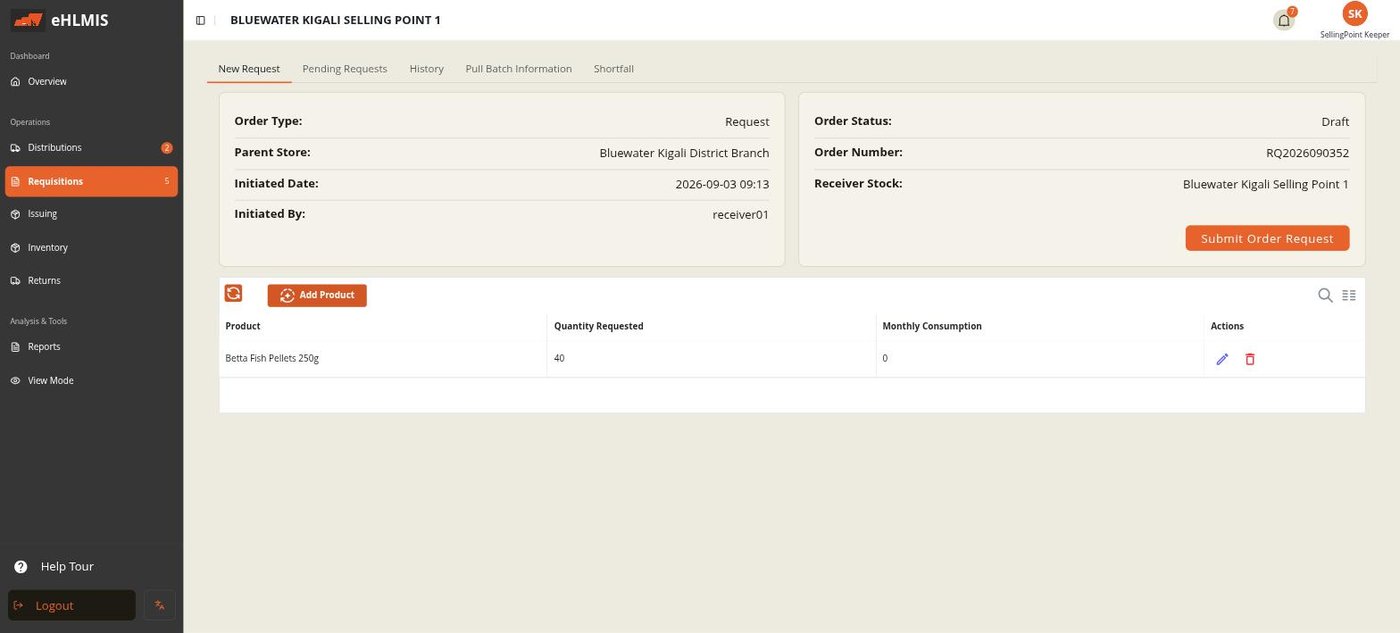
The Requisitions screen has tabs: New Request, Pending Requests, History, Pull Batch Information, Shortfall.
Building and sending a request
- On New Request you always have one open Draft order for your store, addressed to your parent store.
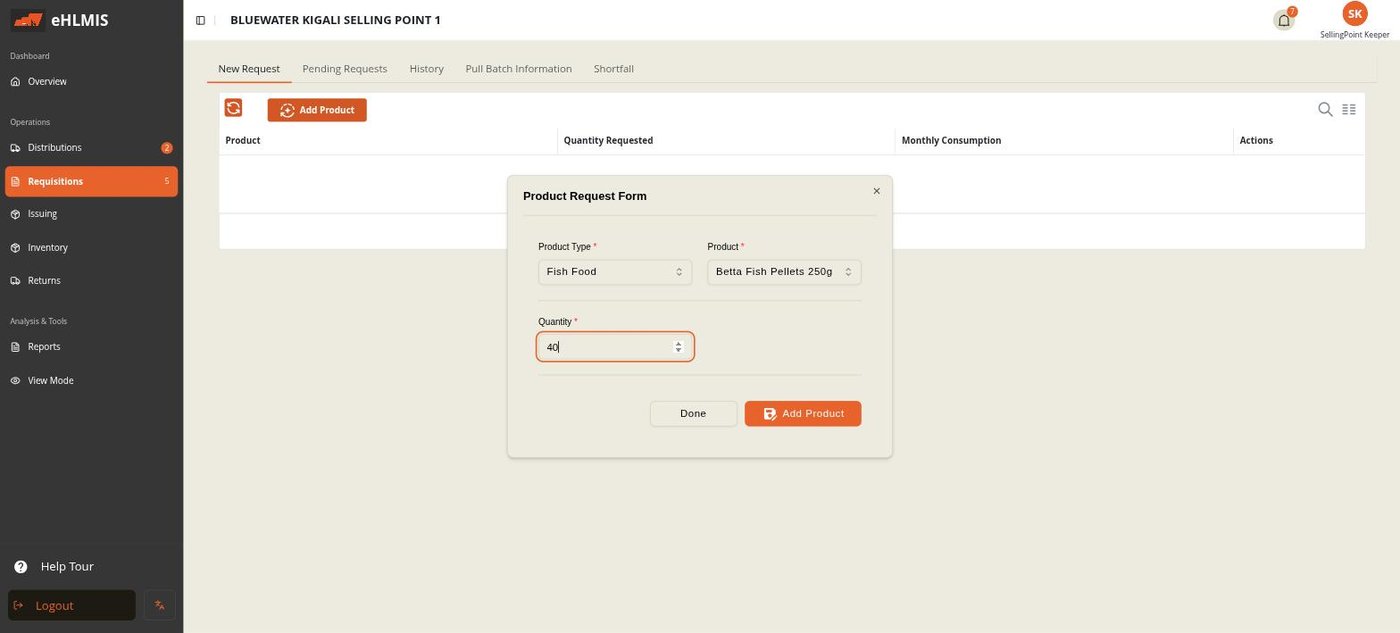
- Click Add Product, choose a Product Type and Product, enter the Quantity you want, and save. Repeat for each product.
- Edit or remove a line with its row actions.
- When the request is complete, click Submit Order Request. It moves to your parent store as Submitted.
Confirming what arrived
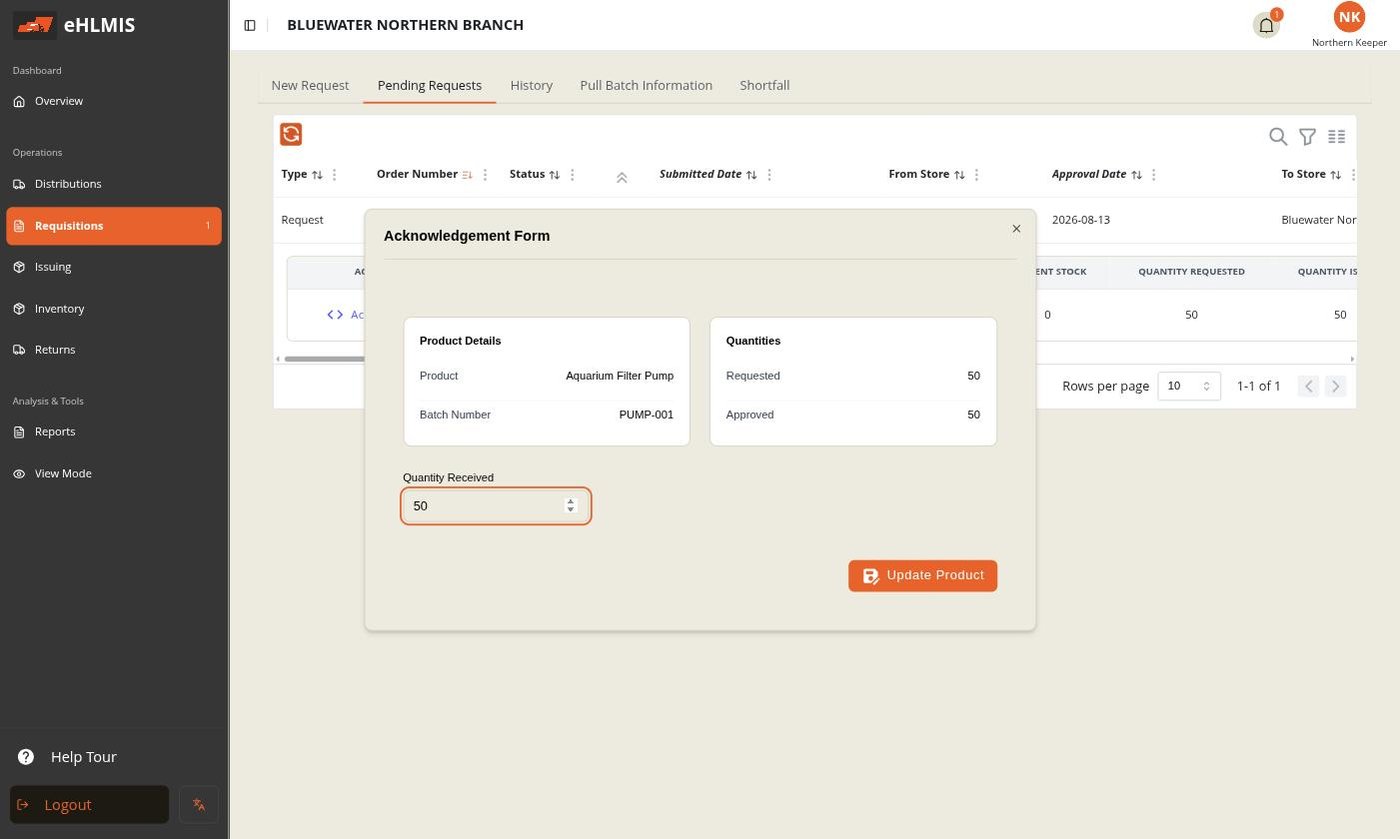
Once your parent store approves and releases the order, it appears under Pending Requests. Open its Acknowledgement Form:
- Each line shows Requested, Approved, and a Quantity Received box.
- Enter what physically arrived for each line.
- If every Quantity Received equals Approved, confirming the acknowledgement moves the order to Complete.
- If any line received less than approved, HLMIS asks for a Shortfall Reason (and lets you attach a proof photo). The order then goes to Pending Shortfall Approval — see Shortfalls.
The other tabs: History is your completed orders; Pull Batch Information looks up batch and expiry details for a product; Shortfall tracks the outcome of any shortfalls you raised.
Fulfilling requests (Distributions)
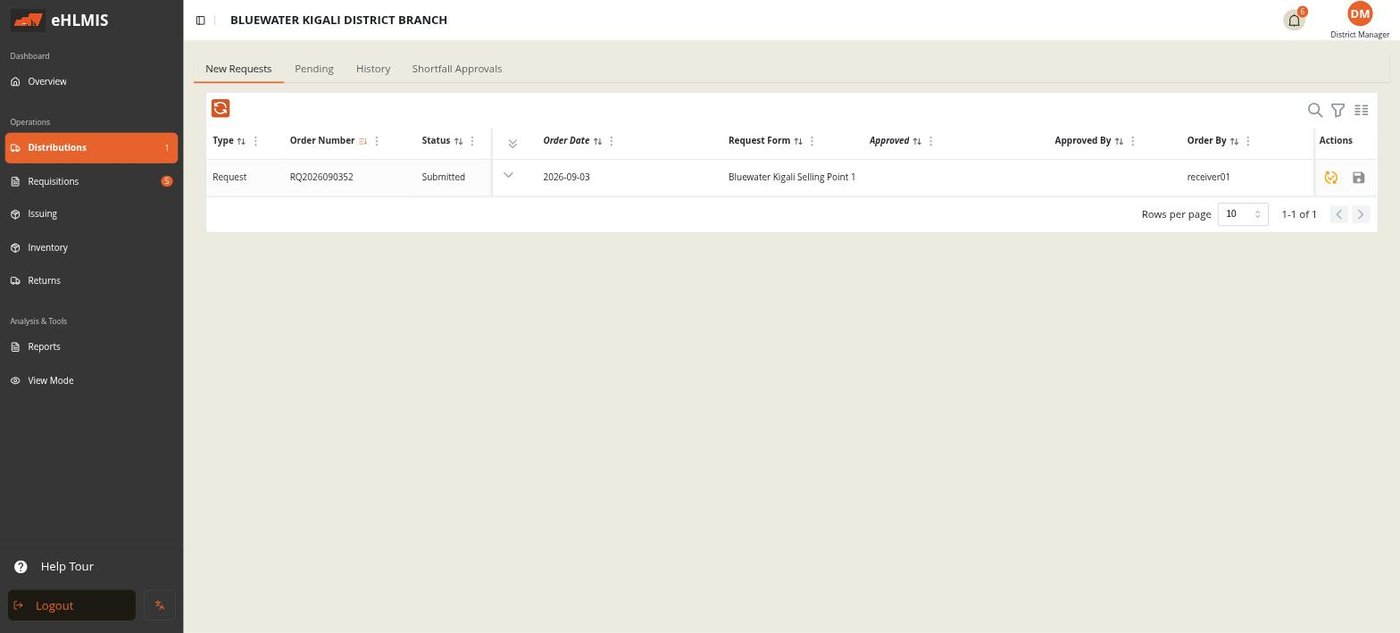
The Distributions screen has tabs: New Requests, Pending, History, Shortfall Approvals.
Approving and releasing an order
Open an incoming request (expand its row). For each line you:
- Batch Mapping — open the line and set the Quantity Approved (it can be less than requested, or the same). This is the quantity that will be released from your stock.
- Or Batch — pull the line from a specific / new batch.
- Or mark the line unavailable — if you cannot supply that product at all, so the requesting store knows not to expect it.
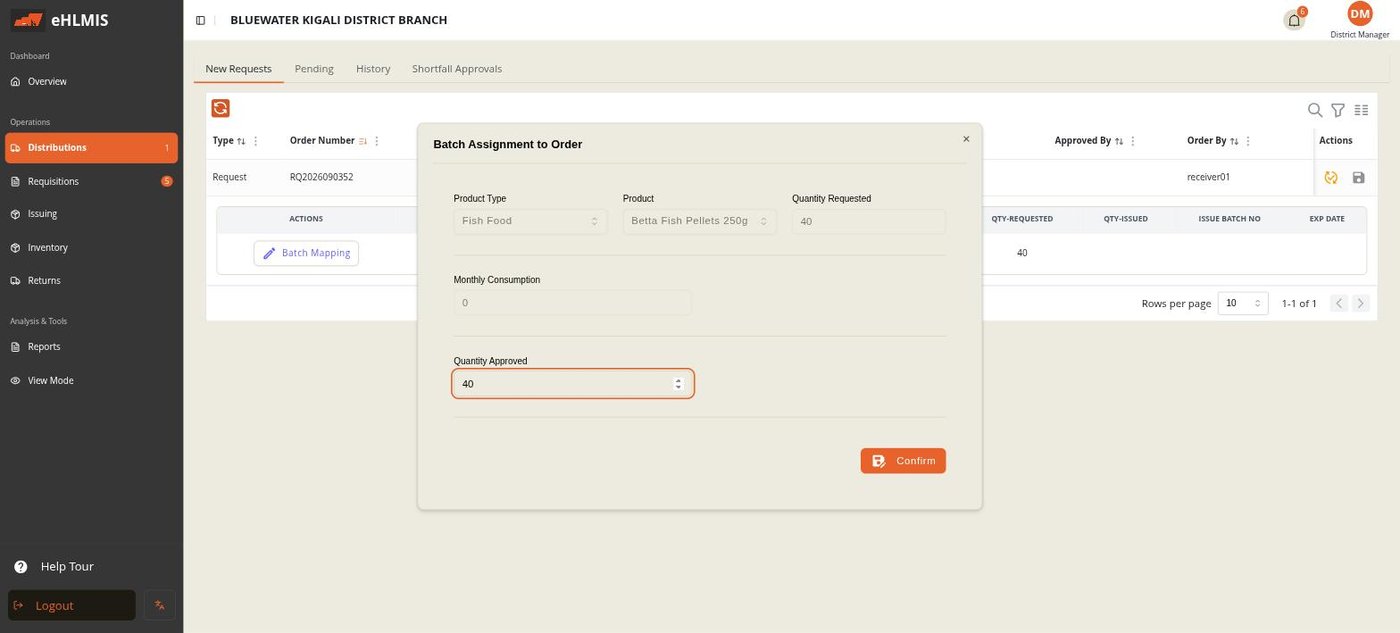
Then move the whole order along:
- Validate — locks in the approved quantities (Pending). You can Reverse this back to Submitted if you need to change something.
- Approve — releases the stock. This is the point where balances change: the approved quantities leave your store and arrive at the requesting store. The order is now Approved, waiting for the other store to acknowledge.
Pending and Shortfall Approvals
- Pending lists orders you have approved that the requesting store has not yet acknowledged.
- Shortfall Approvals is where you decide what happens when a store reports it received less than you sent — covered in Shortfalls.
Related
- A partial delivery is handled through Shortfalls.
- Sending stock back up the chain (not tied to a request) is a Return.
- Stock leaving a store for consumption rather than another store is Issuing.