Notifications
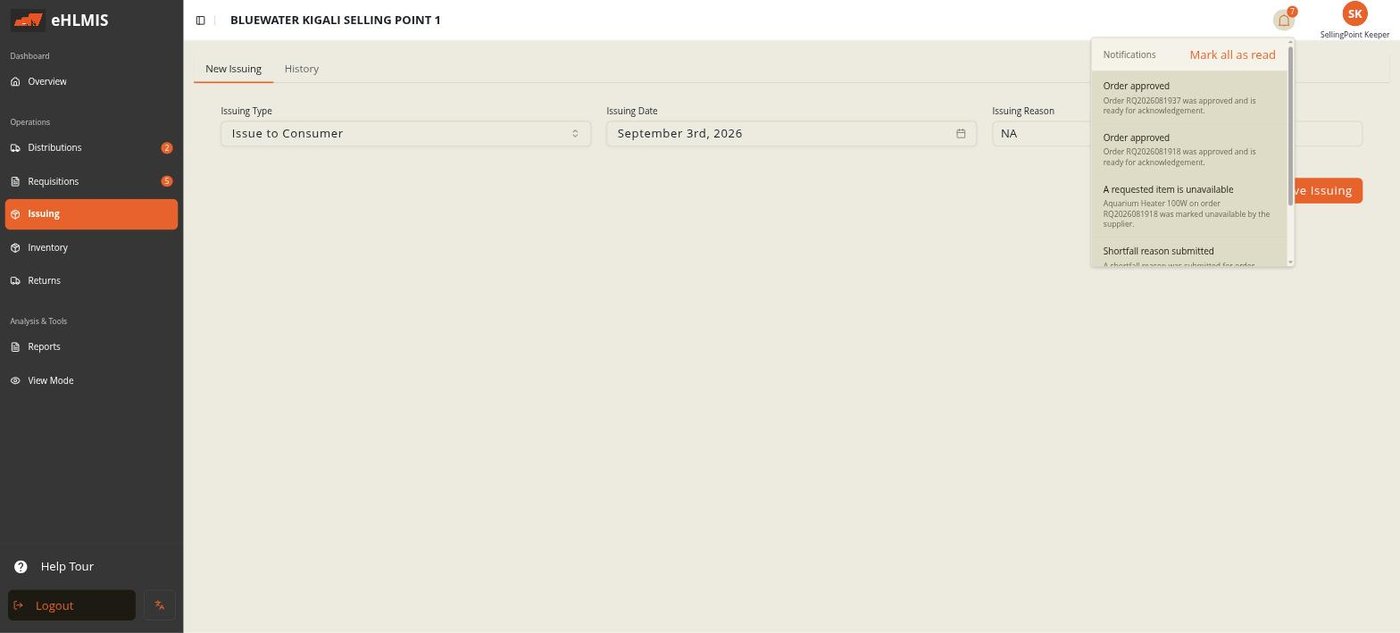
HLMIS tells you when an order or shortfall needs your attention. There is nothing to set up — you receive the notifications relevant to your store and role automatically.
Where they appear
- The bell in the top bar. A number badge shows how many are unread (it stops counting past 9+). Click it for the most recent few, with Mark all as read and View all.
- The sidebar. Menu items carry their own small count — for example Requisitions shows how many unread notifications point at a requisition — so you can see at a glance where the work is.
New notifications arrive live; you do not need to refresh the page.
What triggers one
| Notification | Who gets it | Goes to |
|---|---|---|
| Order approved — an order you requested has been approved and released, ready to acknowledge | The requesting store | Requisitions → Pending Requests |
| A requested item is unavailable — the supplying store could not fill a line | The requesting store | Requisitions → Pending Requests |
| Shortfall reason submitted — a store you supply has reported receiving less than you sent | The supplying store | Distributions → Shortfall Approvals |
| Shortfall approved — your shortfall submission was accepted | The store that raised it | Requisitions → History |
| Shortfall rejected — your shortfall was not accepted; re-check and acknowledge again | The store that raised it | Requisitions → Pending Requests |
Clicking a notification takes you straight to the screen where you deal with it.
Who receives what
Each notification goes to the active users at the relevant store whose role includes Manage Orders — typically the store manager and store keeper there. You only ever see notifications for your own store; you will not see another store's approvals or shortfalls.
Marking as read
- One at a time — clicking a notification marks it read.
- All at once — Mark all as read in the dropdown.
Read notifications stay in View all for reference; only unread ones count towards the badges.