Issuing and Dispensing
Issuing is how stock leaves a store for something other than another store — handed to a customer or patient (dispensing), or written off (wastage). Stock moving between stores is an order, not an issue.
The screen is available to users with the Manage Issuing permission and has tabs: New Issuing, History, and — for stores at the bottom of the hierarchy — Consumers.
Starting an issue
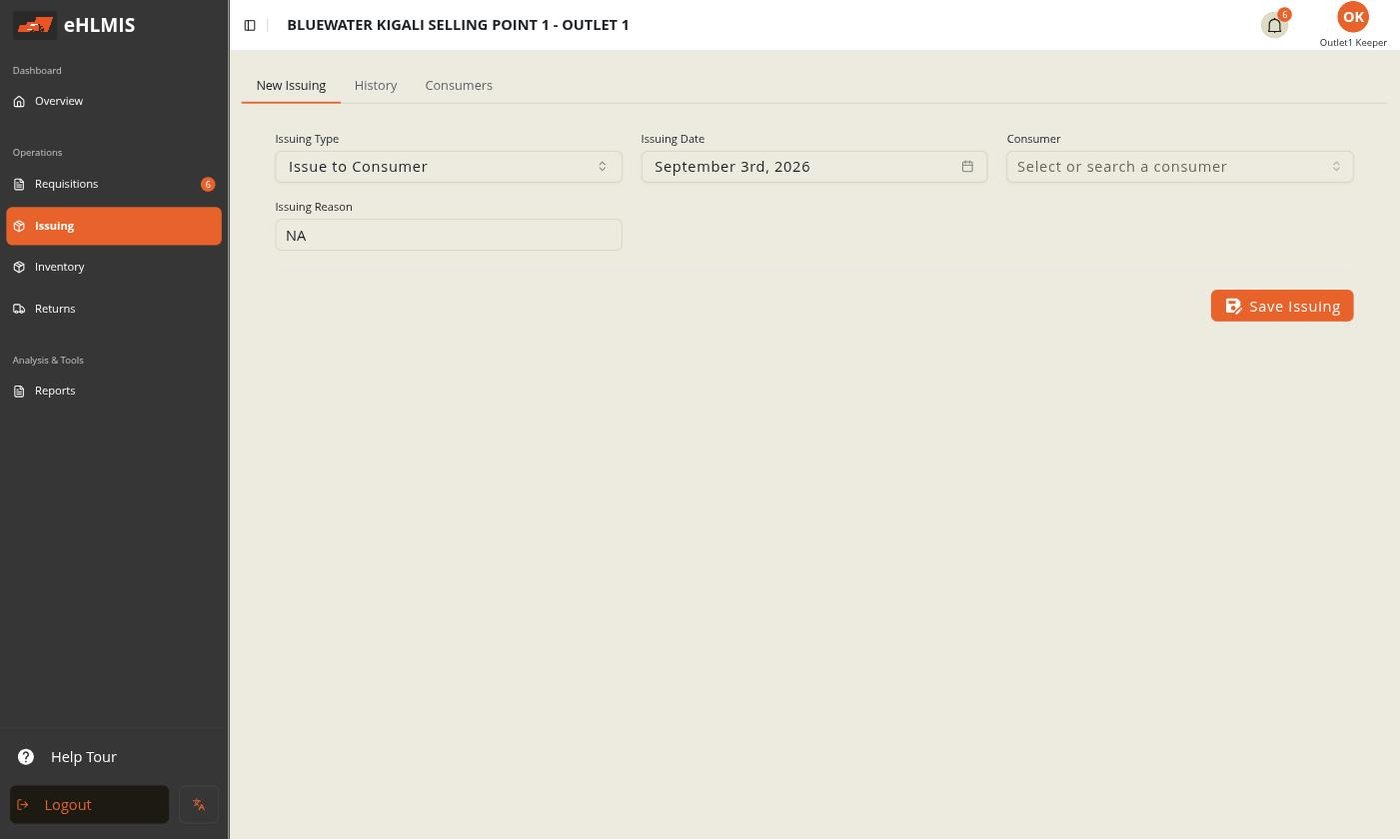
On New Issuing you build one draft issue at a time. Set the header first — Issuing Type, Issuing Date, and an Issuing Reason — then Save Issuing to open the draft.
The Issuing Type has two values:
Issue to Consumer (dispensing)
Stock going to a consumer. You also pick the Consumer — search by name, or type a new name and choose + Add "…" as a new consumer to register them (full name, optional phone) on the spot.
Wastage
Stock being written off. You also pick a Wastage Type — a built-in list (damaged, expired, and so on), unless your deployment has configured its own under Attributes.
Adding what was issued
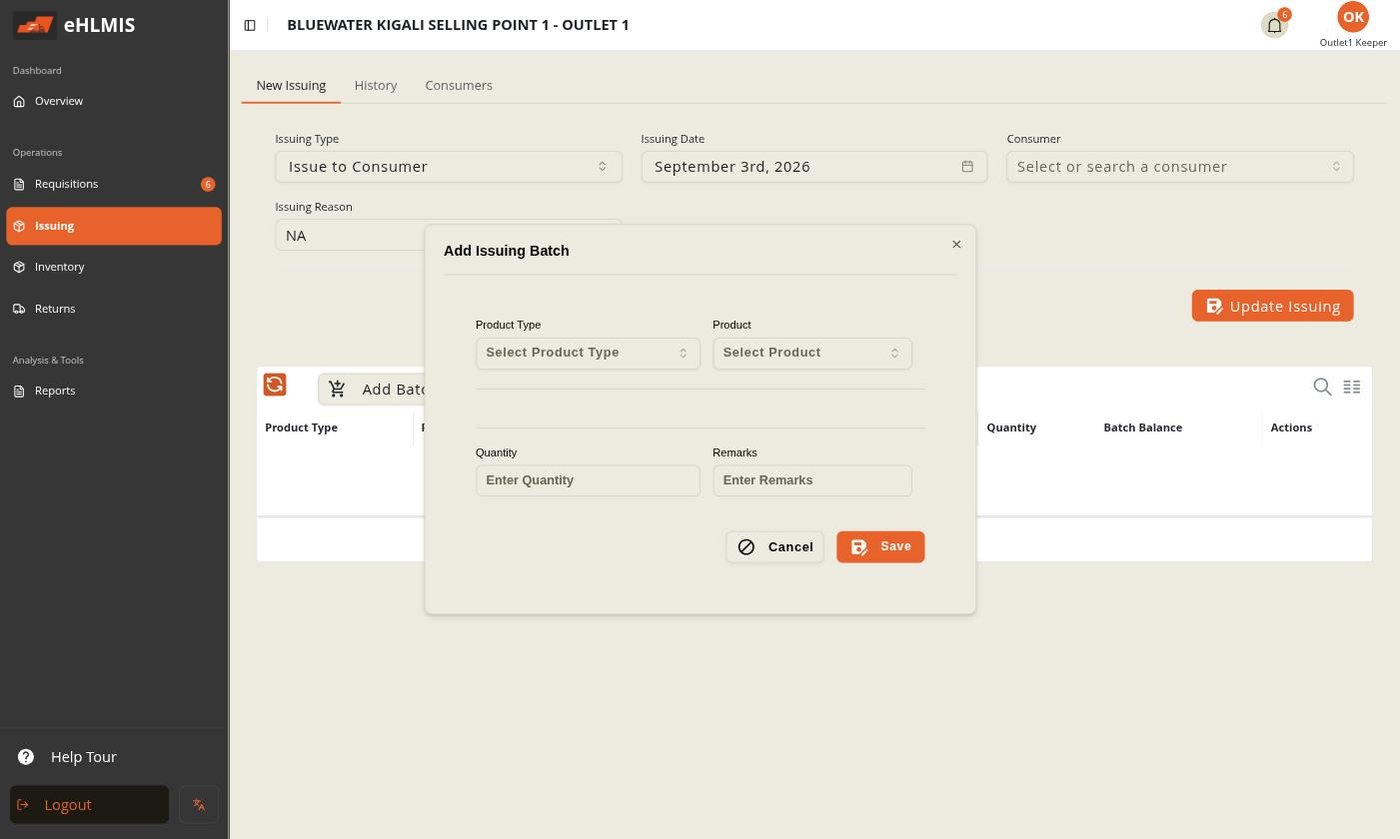
With the draft open, click Add Batch for each product:
| Field | Notes |
|---|---|
| Product Type / Product | What is going out |
| Batch | Which lot it comes from (with its balance shown) |
| Quantity | How much |
| (custom fields) | Any issuing fields defined under Attributes |
Scanning and serial-number capture in HLMIS are part of Arrivals only. The issuing form has no scanner input.
Validate, then approve
- Validate the draft — confirms the lines (Pending). You can Reverse it back to Draft to change something.
- Approve — this posts the issue: the quantities leave your store's balance. Dispensed stock is now recorded against the consumer; wasted stock is recorded as lost.
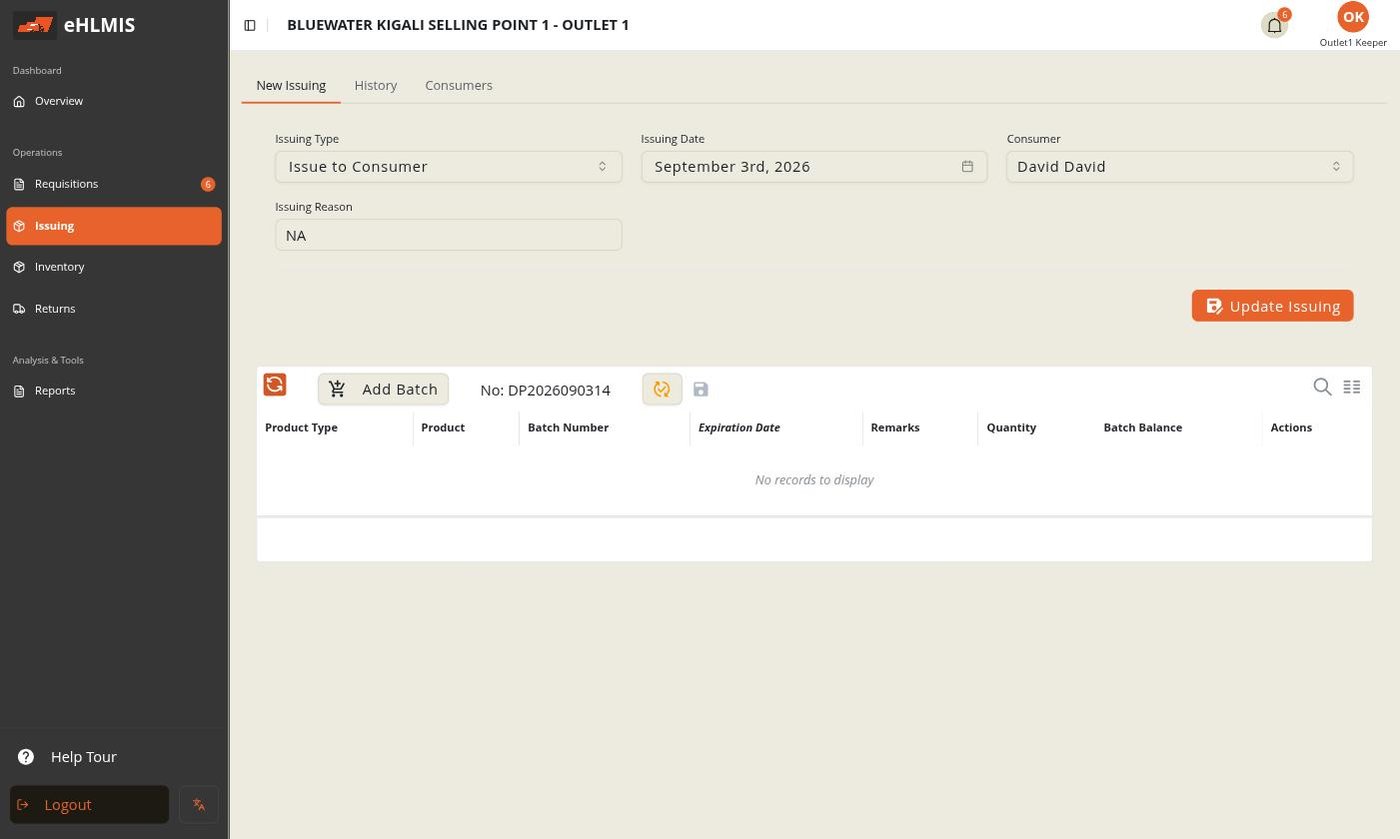
You can only have one issue awaiting approval at a time — if you try to start another, HLMIS asks you to review and approve the pending one first.
Recording actual usage (Log Usage & Returns)
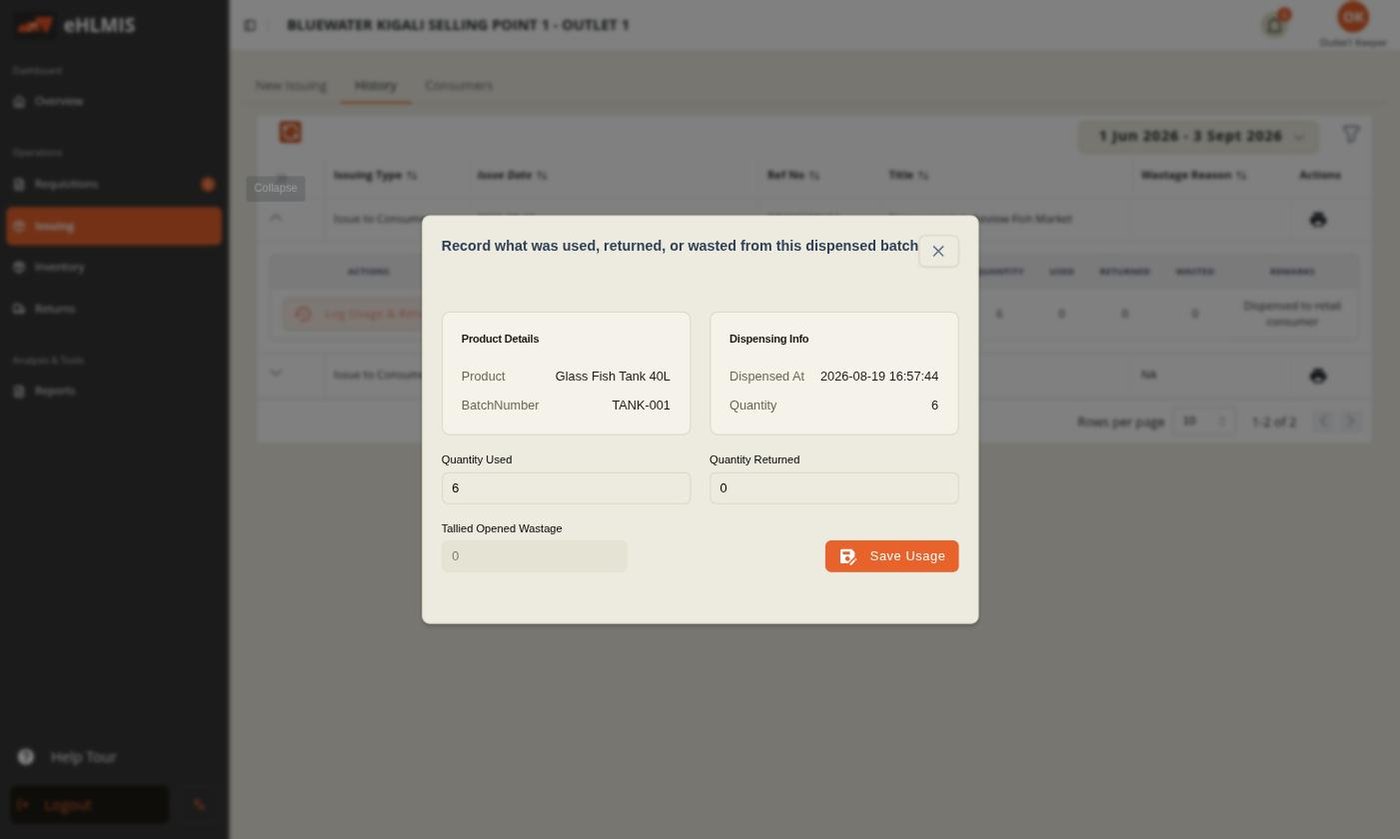
For a dispensed batch — especially stock taken out for an outreach or a session — you often need to record afterwards what really happened to it. On the History tab, expand an issue and open Log Usage & Returns for a batch. The form shows the Dispensing Info (when, and how much was dispensed) and lets you enter:
- Quantity Used — how much was actually consumed (defaults to the full amount)
- Quantity Returned — how much was brought back and added to stock again
Whatever is left over — dispensed minus used minus returned — is shown as Tallied Opened Wastage and recorded as a loss. Because the form starts at fully used, returns and wastage are always a deliberate entry. Click Save Usage to record it.
Consumers
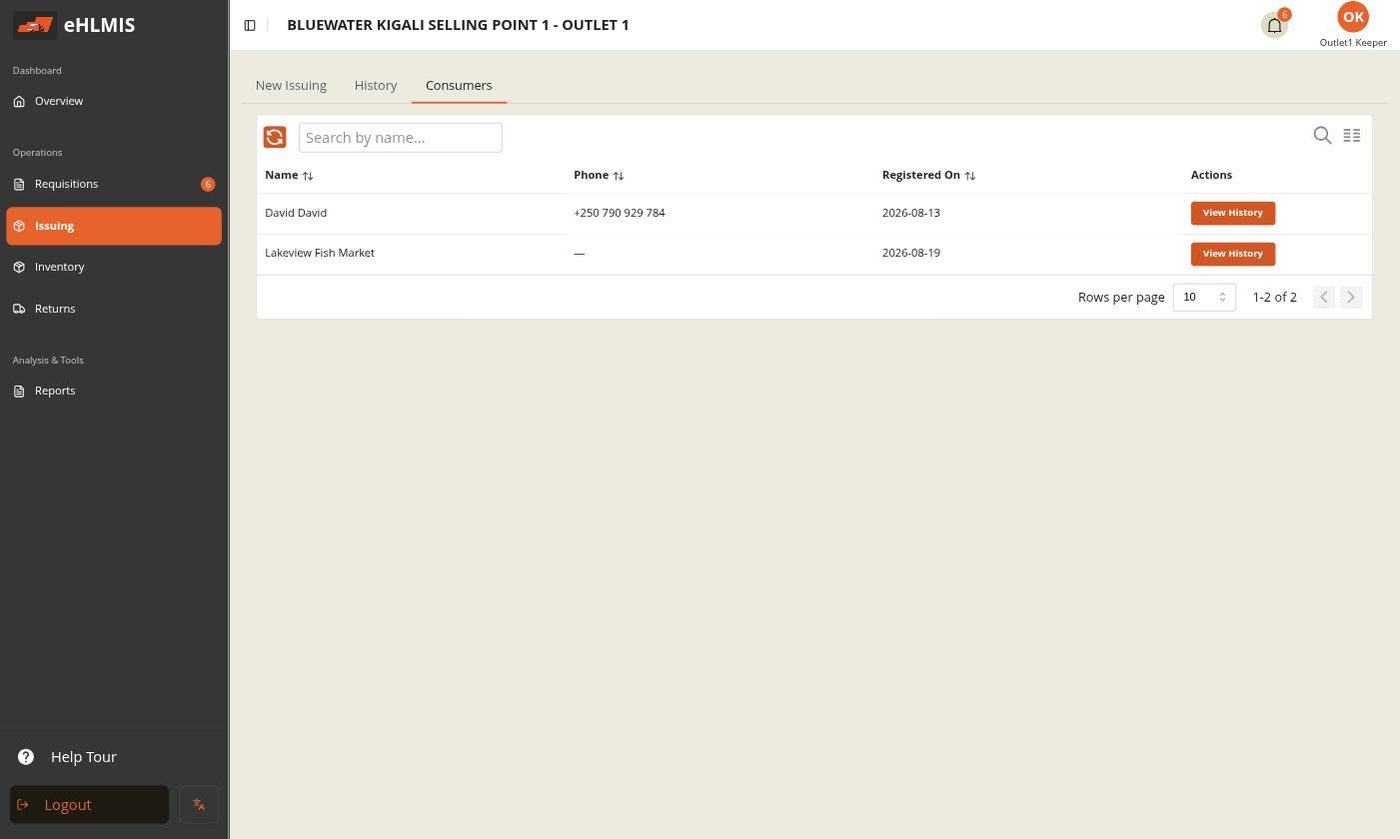
Stores at the bottom of the hierarchy get a Consumers tab — the register of people or accounts you dispense to, with their name, phone, and registration date, and View History to see everything dispensed to each one.